Social Media & Scenes
Create Instagram and X Posts with Social Media Post Scenes
Create fictional Instagram and X posts, choose a Character’s social account, customize content and engagement, and add comments or replies.
By austudioPublished Updated
Create a fictional café update for your AU using the Social Media Post scene format. This tutorial walks you through an Instagram post, then shows you how to create a matching X post.
By the end, you will have two separate scenes with their own platform, post content, and Character account identity.
Before you begin
You will need:
- An AU Studio project.
- A Character named Mira with an active Instagram account and an active X account.
- A café photo if you want to include an image.
- Optionally, a second Character named Rowan with active accounts on the platforms where you want them to comment.
For this example, use @mira.pages for Mira’s Instagram account and @mirawrites for her X account.
These are fictional accounts managed inside your project. You do not need to connect real Instagram or X accounts.
1. Create an Instagram post scene
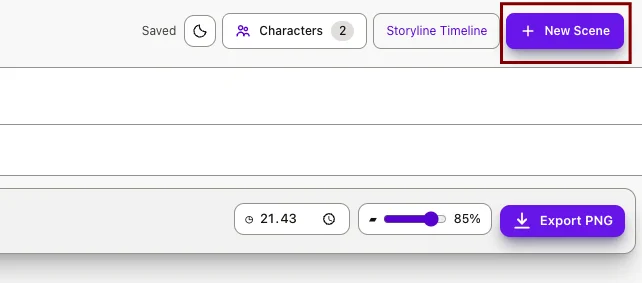
- Open your project in Studio and open Add Scene.
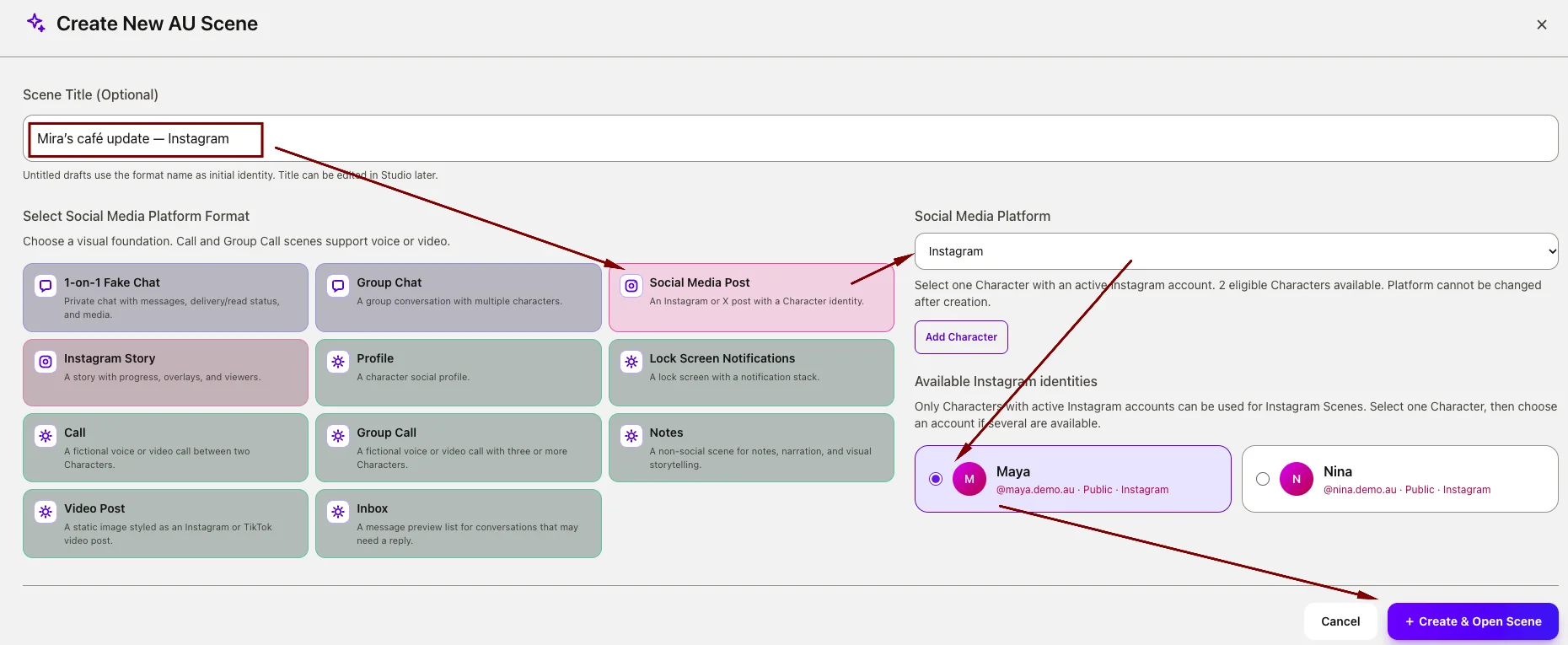
- Enter
Mira’s café update — Instagramin Scene Title. - Choose Social Media Post.
- Under Social Media Platform, keep Instagram selected.
- Select Mira as the author.
- If Mira has multiple active Instagram accounts, choose
@mira.pages. If she has only one matching active account, AU Studio selects it automatically. - Click Create & Open Scene.
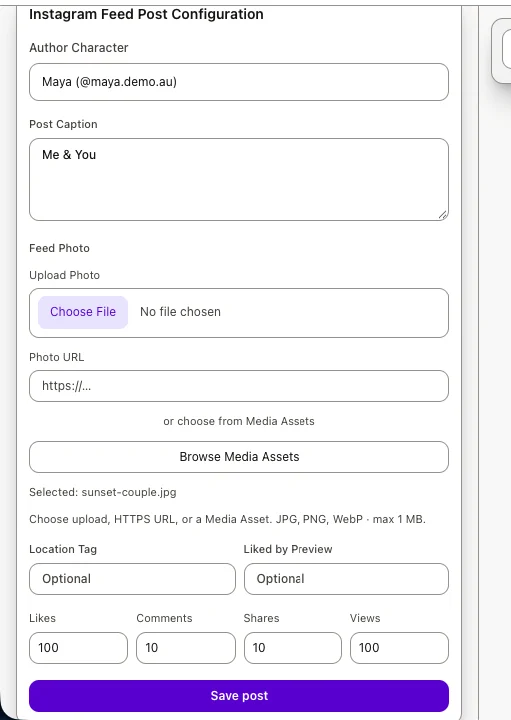
The scene opens with Instagram Feed Post Configuration and a phone preview.
The selected Character supplies the author, while the selected social account supplies the post’s platform identity.
2. Write the Instagram caption and choose a photo
In Post Caption, enter:
Found a quiet corner, ordered too much coffee, and finally finished chapter one. ☕📖 #WritingDay
Under Feed Photo, choose one image source:
- Upload Photo to select a JPG, PNG, or WebP file, up to 1 MB.
- Photo URL to provide an HTTPS image URL.
- Browse Media Assets to select an image already available in your media library.
For this example, choose a café photo with a coffee cup and an open notebook.
You can also fill in these optional fields:
| Field | Example |
|---|---|
| Location Tag | Chapter One Café |
| Liked by Preview | rowan.reads |
The Instagram photo appears in a square viewport and fills it by cropping. Choose an image whose main subject remains visible within a square.
3. Set engagement and save
Enter fictional engagement values:
| Field | Example |
|---|---|
| Likes | 128 |
| Comments | 0 |
| Shares | 4 |
| Views | 560 |
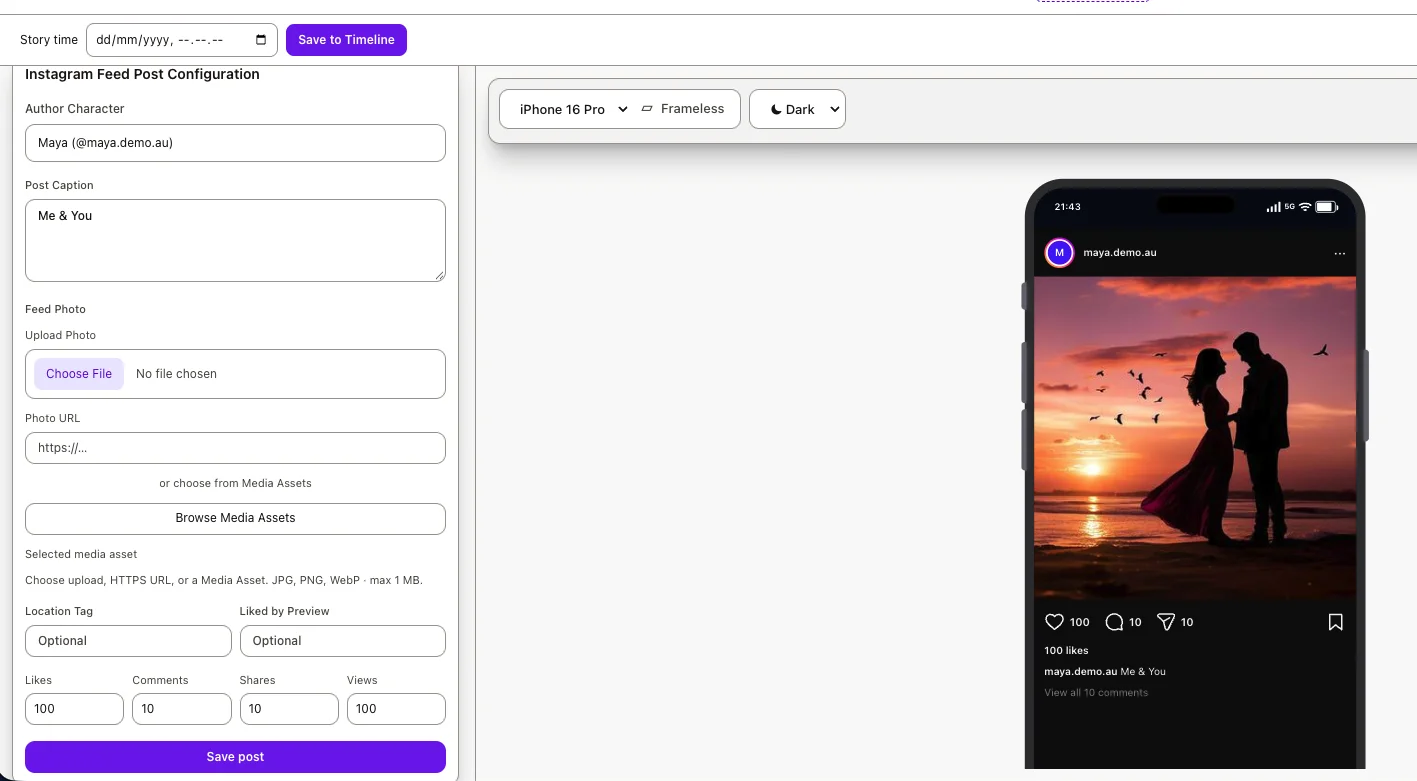
Click Save post.
Check the phone preview for Mira’s account identity, photo, caption, location, and visible engagement details. Saving updates the existing post.
Engagement counters and Character comments are separate controls. Entering a number does not create written comments.
4. Add a Character comment
To give the post a story interaction, find Character Comments.
- Choose Rowan in Commenter.
- Enter
You said one coffee. That is definitely three.in Comment. - Set Comment likes to
12. - Click + Add Comment.
Rowan needs an active Instagram account to appear as an eligible commenter.
To let Mira respond:
- Click Reply beside Rowan’s comment.
- Check the Replying to label.
- Select Mira as the commenter.
- Enter
Research requires commitment. - Set the reply’s likes and click + Add Reply.
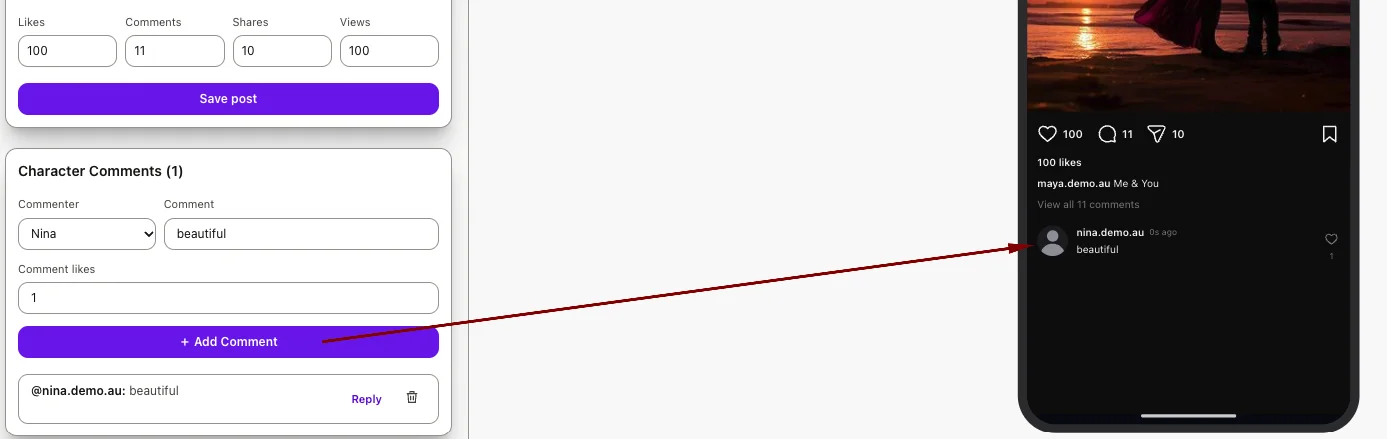
Use Cancel reply if you want to return to writing a new top-level comment.
The preview shows the conversation beneath the post. Replies remain grouped under their original comment.
5. Create the X version
Create another scene for Mira’s X update:
- Open Add Scene.
- Enter
Mira’s café update — Xin Scene Title. - Choose Social Media Post.
- Change Social Media Platform to X.
- Select Mira.
- Choose
@mirawritesif an account selection is required. - Click Create & Open Scene.
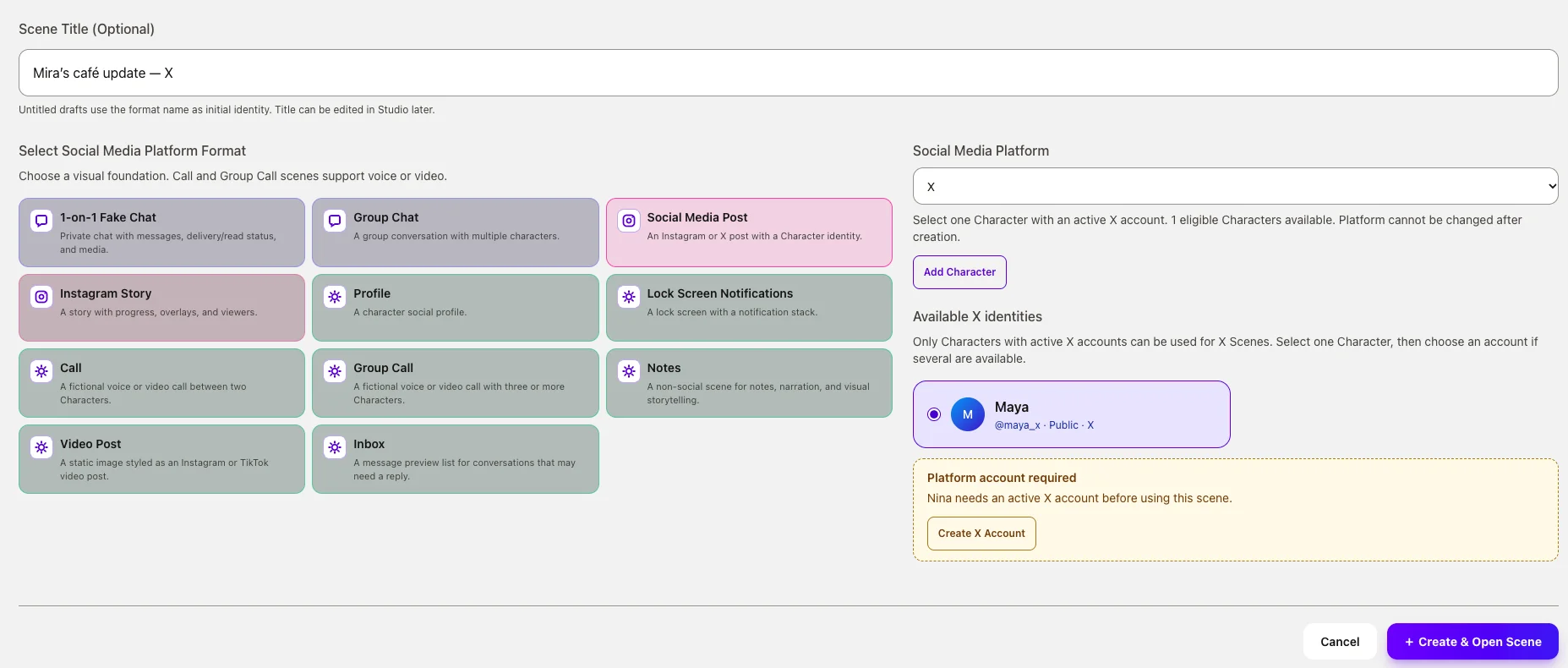
The editor opens X (Twitter) Post Settings.
The platform is chosen when you create the scene. To make an X version of an Instagram post, create a separate scene.
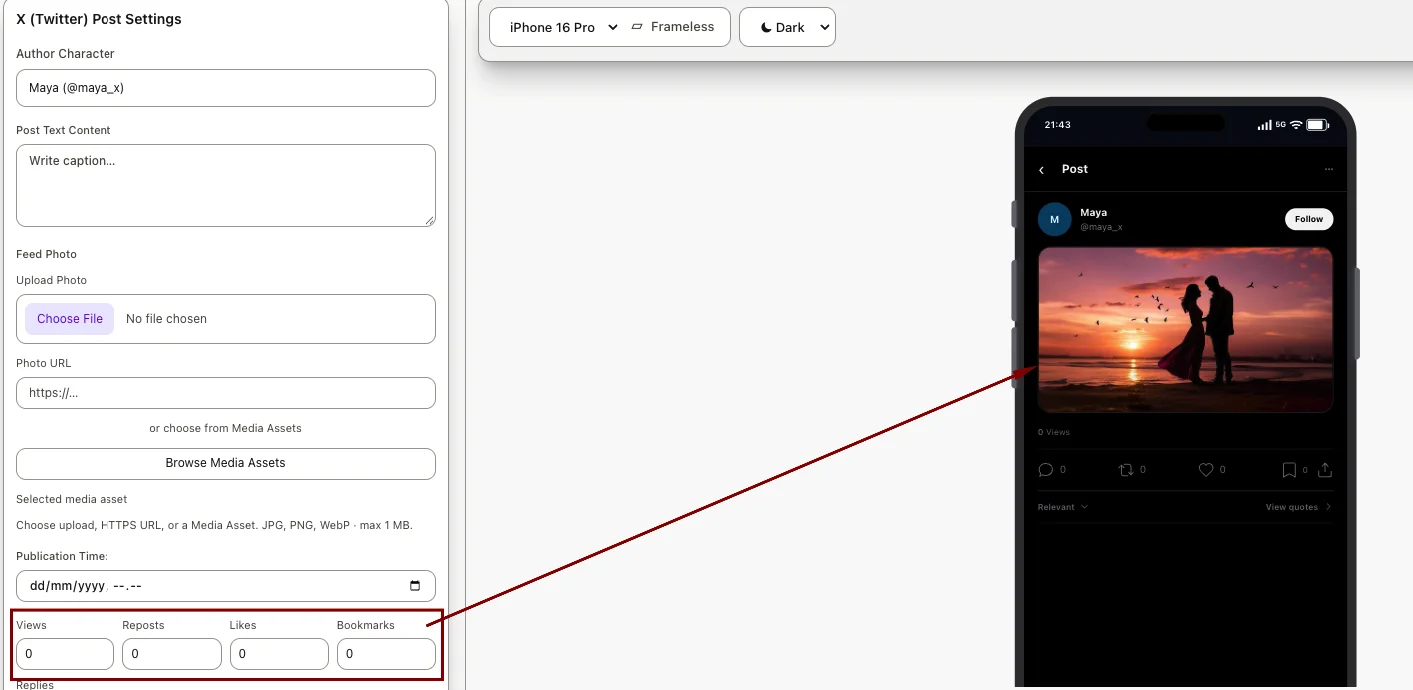
6. Customize the X post
In Post Text Content, enter:
Chapter one is finally done. Three coffees later, I am choosing to call this a productive afternoon.
You can use Feed Photo to add an image through an upload, HTTPS URL, or existing Media Asset.
Set Publication Time to the date and time you want represented in the fictional post.
Then enter engagement values:
| Field | Example |
|---|---|
| Views | 1700 |
| Reposts | 8 |
| Likes | 96 |
| Bookmarks | 5 |
| Replies | 0 |
Click Save post and review the X preview.
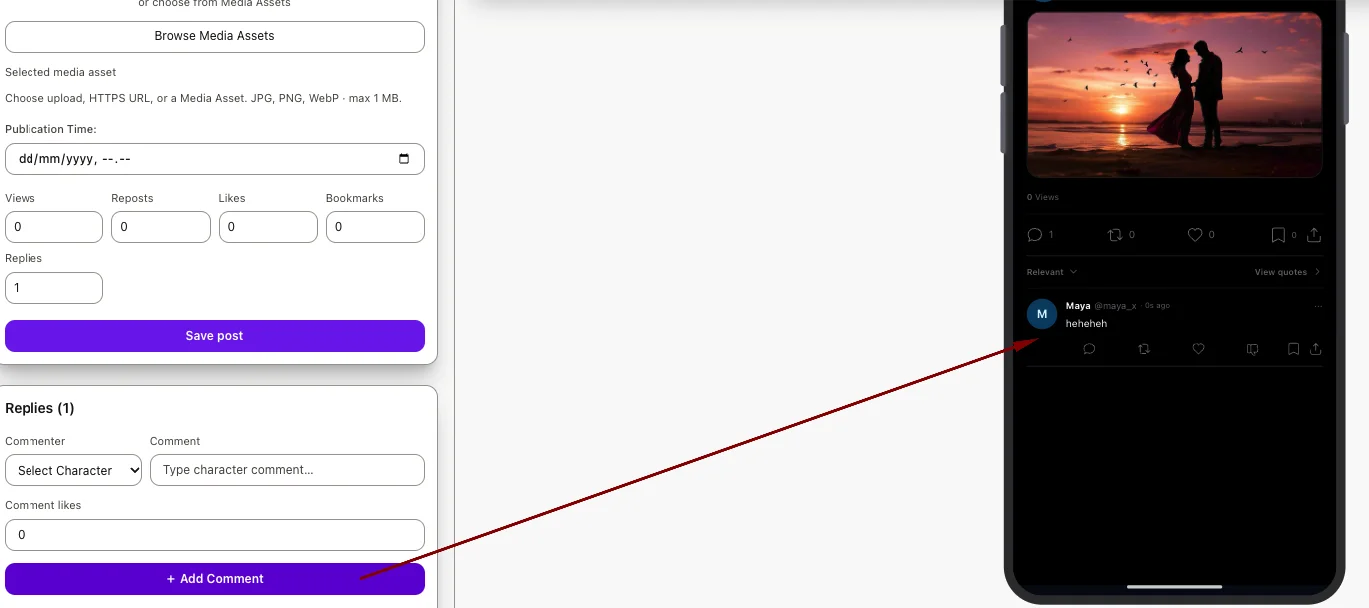
7. Add an X reply
In Replies:
- Select Rowan in Commenter.
- Enter
The coffee deserves a co-author credit.in Comment. - Set Comment likes to
7. - Click + Add Comment.
Rowan must have an active X account for this step. An Instagram account alone does not make a Character eligible to reply on X.
Use Reply beside an existing entry to respond directly to it.
The Replies engagement value does not create written Character replies. Add entries in the Replies editor when you want an actual conversation beneath the post.
Check your finished scenes
Open each scene and confirm that:
- Mira uses the intended account for that platform.
- The post text matches your story.
- Any selected photo displays correctly.
- Engagement values fit the fictional situation.
- Rowan’s comments or replies appear under the correct post.
You now have an Instagram scene and an X scene showing the same story moment through two different social platforms.
Common problems
I cannot select my Character
Check that the Character belongs to the current project and has an Active account for the selected platform.
Use the account setup option offered in the scene dialog, then return to select the Character.
AU Studio asks me to choose an account
The Character has multiple matching active accounts. Select the account whose username you want to appear on the post.
My Character selection clears when I change platforms
Eligibility follows the selected platform. A Character with only an Instagram account cannot author an X post. Add or activate the matching account, then select the Character again.
My photo is rejected
Use JPG, PNG, or WebP within the displayed 1 MB limit. For Photo URL, use an HTTPS image address. Check the field’s validation message before trying again.
The engagement count does not create comments or replies
Counters represent fictional engagement totals. Use Character Comments on Instagram or Replies on X to add visible written interactions.
I want to switch a saved scene from Instagram to X
Create a new Social Media Post scene and select X during creation. The platform selector is available when creating a scene.